2. Building an App Menu
Now that you know how to spawn keyboards and pickers, how do you glue them together into a real app?
In this tutorial, we will build a basic application shell that waits for user interaction. Instead of immediately quitting, the app runs in a loop, showing a menu when a key is pressed or the screen is tapped.
The App Shell
Section titled “The App Shell”We’ll structure our script with a main loop that repeatedly reads keys using pollevent() and processes them.
import cinputfrom gint import *
def main():    running = True
    while running:        dclear(C_WHITE)
        # Draw a black header        drect(0, 0, 320, 40, C_BLACK)
        # Hamburger Icon        for i in range(3):            drect(10, 14 + i*5, 28, 15 + i*5, C_WHITE)
        dtext(45, 16, C_WHITE, "My Awesome App")
        # Display instructions        dtext(25, 200, C_BLACK, "Tap the menu to open options!")
        dupdate()        cleareventflips()
        # Input loop waiting for user        ev = pollevent()        events = []        while ev.type != KEYEV_NONE:            events.append(ev)            ev = pollevent()
        for e in events:            # Physical key fallback            if e.type == KEYEV_DOWN and e.key == KEY_MENU:                handle_menu()
            # Touch Area matching the hamburger icon            if e.type == KEYEV_TOUCH_UP and e.y < 40 and e.x < 50:                handle_menu()
            if e.type == KEYEV_DOWN and e.key == KEY_EXIT:                running = False
def handle_menu():    opts = ["Enter Name", "Change Settings", "Quit"]    choice = cinput.pick(opts, "App Menu", theme="light", touch_mode=KEYEV_TOUCH_UP)
    if choice == "Quit":        # Force an exit        import sys        sys.exit()    elif choice == "Enter Name":        res = cinput.input("What's your name?", type="text", touch_mode=KEYEV_TOUCH_UP)        # Do something with res!    elif choice == "Change Settings":        pass # TODO: handle settings
main()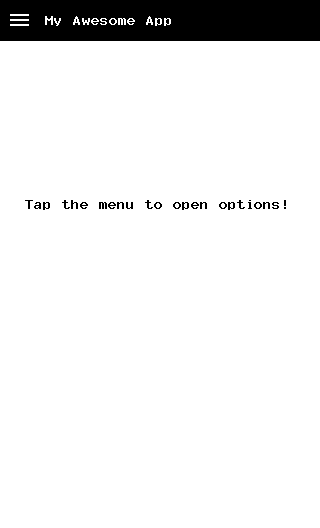
Explaining the touch_mode property
Section titled “Explaining the touch_mode property”Notice two things about our app shell and the overlay menu:
- When we check if the user tapped the menu icon (Hamburger), we look for
KEYEV_TOUCH_DOWN. - When we open our pickers via
cinput.pickandcinput.input, we passtouch_mode=KEYEV_TOUCH_UP.
This allows our app to react the moment the screen is touched (TOUCH_DOWN), avoiding annoying delays. This is especially important for more complex apps where you might implement drag-to-scroll or drag-to-slide gestures.
However, since the user’s finger is still physically pressing the screen when the cinput.pick() menu instantly pops up, if the picker was also operating in TOUCH_DOWN mode, it would instantly register a false “click” on whatever list item appeared directly under their finger!
By explicitly setting our child overlays to operate on touch_mode=KEYEV_TOUCH_UP, they’ll wait until the user releases the screen and does a fresh tap. It’s fully seamless.
Next up, let’s learn how to create your own interactive activities using the internal ListView component.