1. The Basics
Ready to build something cool? This first tutorial walks you through everything from asking the user for text, prompting selection menus, and getting confirmations.
1. Asking Text Inputs
Section titled “1. Asking Text Inputs”Stop manually drawing on-screen keyboards! Whether you need text, integers, or floating point numbers, cinput.input() handles everything, complete with touch-support and smooth themes.
import cinputfrom gint import *
# Just one line to summon the input keyboard!name = cinput.input("Enter character name:", type="text", theme="dark")
# Then this is your code that handles the response :if name:    dclear(C_WHITE)    dtext(10,10, C_BLACK, f"Hello, {name}!")    dupdate()
# Wait for key "<--" to exitwhile True:    ev = pollevent()    if ev.type == KEYEV_DOWN and ev.key == KEY_DEL:        break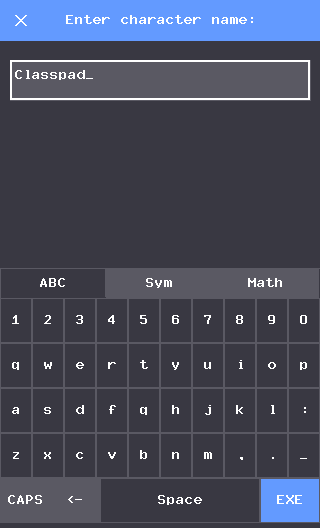
Need numbers? Change type="text" to type="numeric_int" or type="numeric_float". The keyboard instantly transforms into a clean numpad.
2. Choosing From Lists
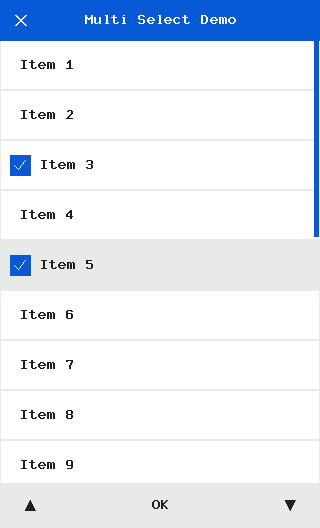
Section titled “2. Choosing From Lists”Got multiple options for the user? Use cinput.pick(). It pops up a gorgeous, swipeable list box. You can even enable multi-select with checkmarks.
options = ["Start Game", "Load Save", "Settings", "Quit"]
# This halts execution until the user picks something.choice = cinput.pick(options, "Main Menu", theme="light")
if choice == "Start Game":    start_level()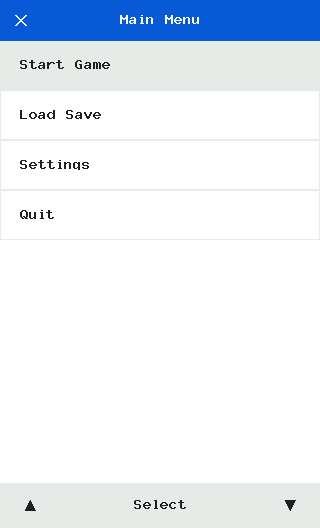
Pro-Tip: Turn on multi=True in the arguments, and can pick multiple items before hitting OK.
3. The ‘Are You Sure?’ Dialog
Section titled “3. The ‘Are You Sure?’ Dialog”You don’t want someone accidentally deleting their 100-hour Pokemon save. Throw an elegant confirmation overlay right in their face using cinput.ask().
sure = cinput.ask("Delete Save?", "This action cannot be undone.", ok_text="DELETE", theme="light")
if sure:    delete_everything()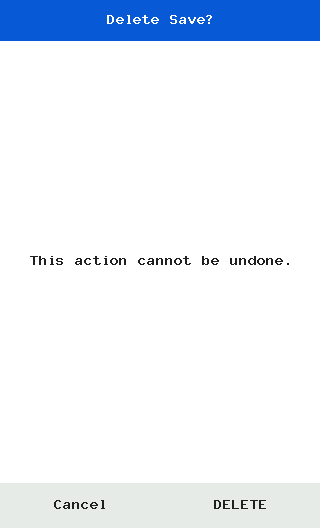
You know the basics! If you’re ready to put this into an actual app loop, check out the next tutorial.