Reference Manual
This is a quick cheat sheet on all the public tools cinput gives you to build the coolest UIs on the ClassPad.
cinput.input
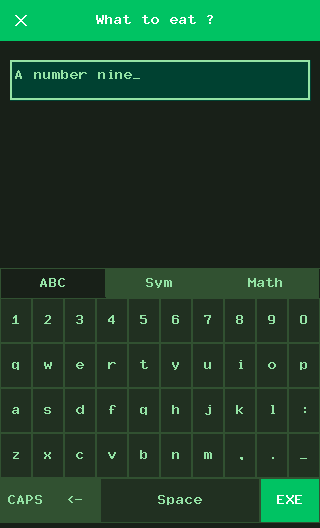
Section titled “cinput.input”cinput.input( prompt, type="alpha_numeric", theme="light", layout="qwerty", touch_mode=gint.KEYEV_TOUCH_DOWN)The single most helpful function. Pauses everything, throws up a full screen modal with a modern-looking on-screen keyboard, and returns the result (or None if the user cancel).
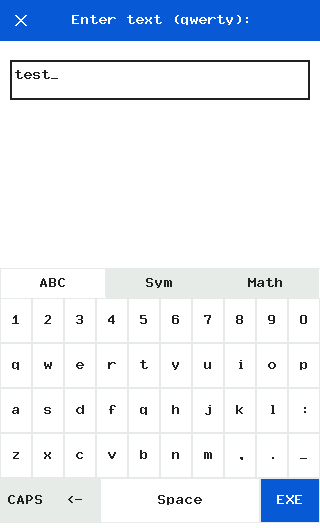
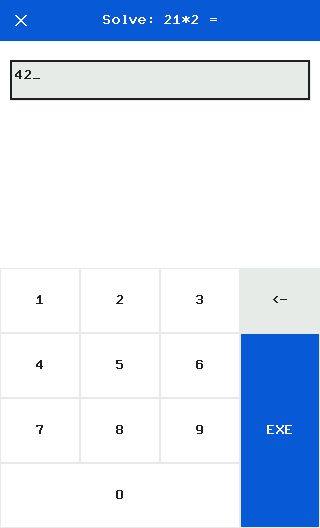
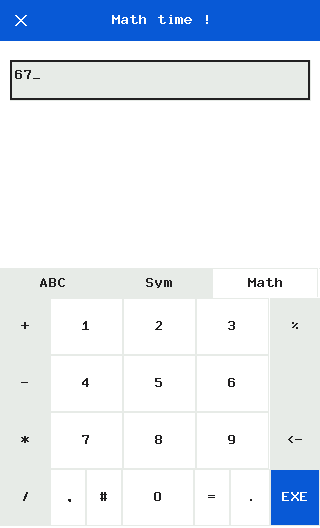
prompt(str): The title of the window.type(str): What kind of keyboard you want:"alpha_numeric": The full QWERTY/AZERTY keyboard with symbols."text": Same as above."numeric_int": Only a numpad. No decimal point."numeric_int negative": A numpad + negative sign."numeric_float": A numpad + decimal point."math": A special math layout for+,-,*,/.
theme(str):"light","dark", or your own custom theme name.layout(str): Custom keyboard map limit. Use"qwerty","azerty","qwertz", or"abc".touch_mode: Customize when the touch is triggered. Default is when you tapKEYEV_TOUCH_DOWN.
numeric_int :
math :
cinput.pick
Section titled “cinput.pick”cinput.pick( options, prompt="Select:", theme="light", multi=False, touch_mode=gint.KEYEV_TOUCH_DOWN)When dealing with a finite number of choices to pick, give the users a list. It pops up a fast, inertial-scrolling list taking over the screen.
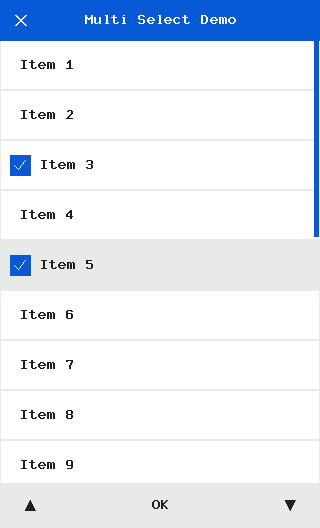
options(List[str]): An array of choices, strings, that would get displayed.prompt(str): Title bar string.multi(bool): Set this toTrueto allow multiple items with checkboxes.Returns: A string ifmulti=False, or a List of Strings ifmulti=True, orNone.
cinput.ask
Section titled “cinput.ask”cinput.ask( title, body, ok_text="OK", cancel_text="Cancel", theme="light", touch_mode=gint.KEYEV_TOUCH_DOWN)The standard modal alert screen with two huge buttons at the bottom.
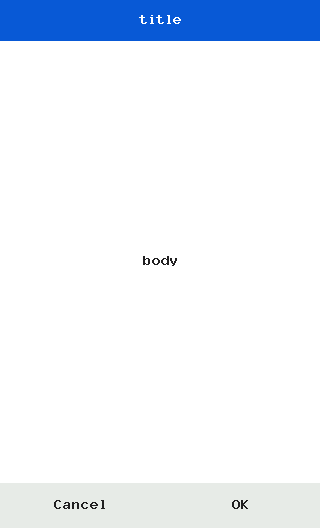
title(str): Large bold title.body(str): Warning phrase.ok_text/cancel_text(str): Define custom labels, like"Validate"instead of"OK".Returns: True if user hit OK, False if user canceled.
Customize Themes
Section titled “Customize Themes”CInput themes are Python dictionaries that allows you to match your app’s aesthetic. Colors are coherent between dialogs and CInput elements.
import cinput
# 1. Define your own hex-codes (R, G, B)MY_SICK_THEME = {    'modal_bg': C_RGB(3, 4, 3),    'kbd_bg':   C_RGB(3, 4, 3),    'key_bg':   C_RGB(4, 6, 4),    'key_spec': C_RGB(6, 10, 6),    'key_out':  C_BLACK,    'txt':      C_RGB(18, 28, 20),    'txt_dim':  C_RGB(8, 12, 8),    'accent':   C_RGB(0, 24, 12),    'txt_acc':  C_WHITE,    'hl':       C_RGB(0, 8, 6), # selected list item background    'check':    C_WHITE}

# 2. Register it with the library!cinput.THEMES['toxic'] = MY_SICK_THEME
# 3. Pull it out anywhere!cinput.pick(["A number nine", "A number nine large", ...], "Menu", theme="toxic")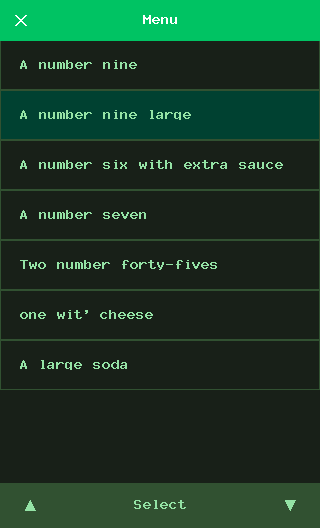
cinput.ListView
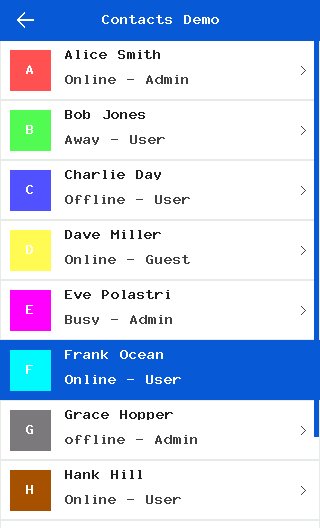
Section titled “cinput.ListView”Use this class to embed a scrollable list inside your own custom loop
Initialization: ListView(rect, items, row_h=40, theme='light', headers_h=None)
rect: Tuple(X, Y, W, H)of the screen bounds.items: A list of dictionaries{'text': 'Item', 'type': 'item', 'arrow': True}or section headers{'text': 'Settings', 'type': 'section', 'height': 30}update(events): Pass the result ofpollevent()here. It handles dragging and clicks. It returns('click', index, item)if pressed!draw(): Renders all visible sections instantly.
Note: You can extend this class to create your own list element
cinput.Keyboard
Section titled “cinput.Keyboard”If you don’t want cinput.input() taking over the whole screen but still want its features.
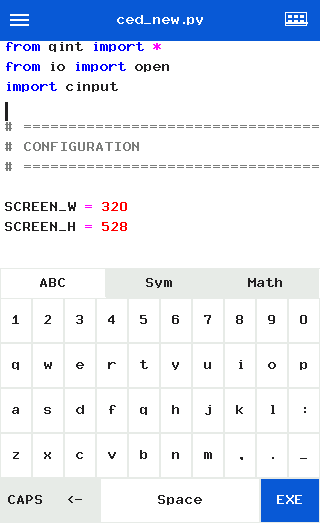
You can draw the keyboard directly inside your own loops (like what ced.py does for the text editor).
Keyboard(default_tab=0, enable_tabs=True, numpad_opts=None, theme='light', layout='qwerty')draw(): Draws the grid.update(event): Returns the character if a key was pressed, or special flags like"ENTER"or"BACKSPACE".
Now, it’s your turn ! Go drop some code!